How to Transcribe an Instagram Reel on iPhone
You have to hand the tool a file, not a link. Instagram does not let outside tools fetch Reel media, so on iPhone the working route is: get the Reel onto your phone by downloading it or screen-recording it, then upload that file in Safari. No app, no account. The part that actually trips people up is not the format: every iPhone-shaped file we tried today went through. It is the size. Files above roughly 3 MB were rejected, and a 60-second screen recording at iPhone settings is about 47 MB.
Why the link never works, on iPhone or anywhere else
Every iPhone workaround exists because of one limitation: Instagram does not allow outside tools to pull Reel media. We tested the four paths a server-side tool would try. A browser fetch is stopped by a cross-origin-resource-policy: same-origin header before it reaches the media. yt-dlp returns an empty media response without authenticated cookies. The oEmbed endpoint needs an OAuth token and returns no video URL without one. The GraphQL endpoint answers HTTP 400 to unauthenticated calls. So the file has to start on your phone.
Three ways to get the file onto the phone
- Your own Reel: open the Reel, tap the three-dot menu, and use the save or download option. The file lands in Photos at Instagram's own compressed bitrate, which is usually small enough to upload as it is.
- Someone else's Reel: there is no download button for other people's media. Screen recording from Control Center is the universal fallback. For transcription only the audio track matters, and a screen recording carries it.
- Audio you were sent: if the Reel's audio reached you as a voice memo or an M4A, upload that instead of the video. It is a small fraction of the size of the same recording as video.
- What does not work: pasting the Reel URL into any tool, including ours. There is no server-side path to the media, so there is nothing for a link field to fetch.
Which iPhone formats actually go through
The one file refused outright was AIFF: HTTP 400, "Unsupported file format. Please select MP3, WAV, M4A, AAC, OGG, FLAC, MP4, MOV, or WEBM." We do not have an iPhone on the bench to say which export path produces AIFF, so treat that as a format we know fails rather than a format you will definitely hit. Re-exporting as M4A clears it.
- M4A, 44.1 kHz stereo, 128 kbps - 30 s, 476 KB - 15.1 s end to end
- M4A, 48 kHz stereo (the rate Instagram uses for Reel audio) - 30 s, 474 KB - 8.9 s
- M4A, 44.1 kHz mono, 64 kbps - 30 s, 253 KB - 6.3 s
- MP4, H.264 + AAC, 1080x1920 - 30 s, 533 KB - 9.1 s
- MOV, H.264 + AAC - 30 s, 533 KB - 9.7 s
- MOV, HEVC + AAC (the iPhone camera default) - 30 s, 645 KB - 10.4 s
- WAV, 44.1 kHz stereo - 10 s, 1.76 MB - 2.2 s
The wall nobody mentions: about 3 MB, and it is size, not length
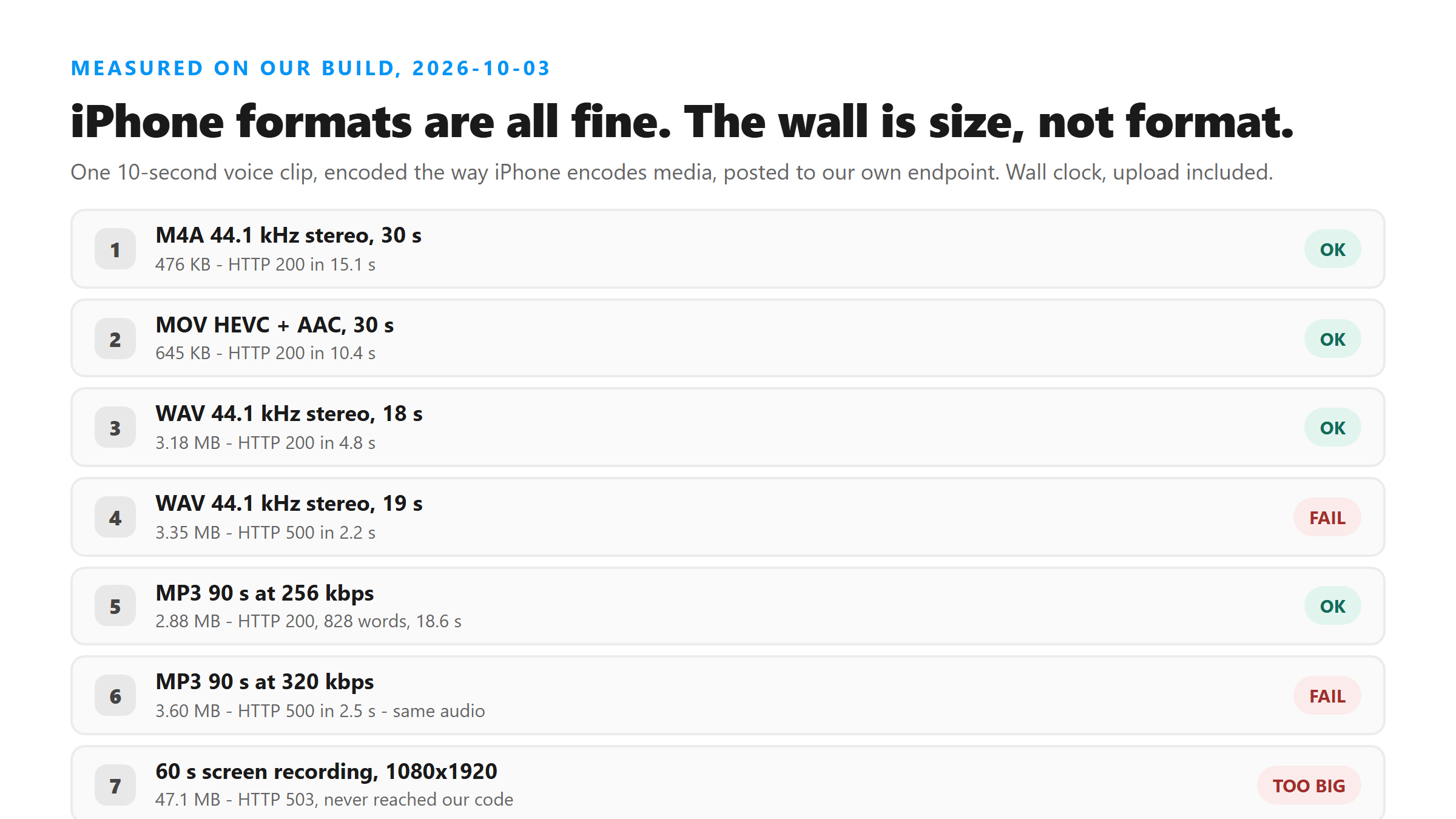
One more thing worth knowing: the error message is misleading. Our own 500 says "please try another supported file", which points at the format, when the same format at two-thirds the size works fine. It is a size limit wearing a format error's clothes.
- AAC gives you room. At 128 kbps stereo, 3 MB is roughly three minutes of audio; at 64 kbps mono, roughly six. Our three-minute stereo M4A (2.83 MB) came back in 27.6 s and 32.7 s on two runs.
- Video gives you none. We encoded a 60-second 1080x1920 screen recording at a typical iPhone bitrate and it came out at 47.1 MB. That upload never reached our code - Cloudflare answered HTTP 503 with error code 1102 after 13.8 s. A 30-second cut of the same recording was 24.5 MB and got the same 503 after 7.3 s.
How long you wait once the file is small enough
Your numbers will move with your connection and with how busy the model is; the same file has taken anywhere from 19 s to 52 s on other days. The shape is the useful part: up to about 90 seconds you are waiting somewhere between 5 and 20 seconds, and past that the wait grows roughly with length. Our test clip is one sentence looped, so treat the word counts as a shape, not as a benchmark of natural speech.
- 30 s / 476 KB M4A - 15.1 s
- 60 s / 946 KB M4A - 13.0 s
- 90 s / 1.42 MB M4A - 15.1 s
- 3 min / 2.83 MB stereo M4A - 27.6 s and 32.7 s (two runs)
- 3 min / 1.51 MB mono M4A - 24.4 s and 23.9 s
The four steps, in order
- Get the file. Download your own Reel, screen-record someone else's, or use audio that was sent to you.
- Check the size before you upload. If it is above about 3 MB, trim it in Photos or export audio only. Do not upload a full screen recording and hope.
- Open the upload page in Safari. It is a plain file picker with
accept="audio/*,video/*", which iOS Safari honours, so Photos, Files and iCloud Drive all work as sources. - Copy or download the text straight away. There is no account, so nothing is kept for you. If you close the tab, the text is gone.
What happens to the file
The file is posted over HTTPS to /api/transcribe, decoded to 16 kHz mono PCM, held in memory for one pass of @cf/openai/whisper, and dropped when the response is sent. We do not keep it, we do not train on it, and there is no account to attach it to. That also means we cannot hand you the text again later, so save it yourself. Our Worker has exactly one binding, the AI binding; no storage is attached to it.
If it fails, read the code first
- HTTP 400, unsupported file format: the container is not one we accept. Re-export as M4A or MP4.
- HTTP 500, transcription failed: in our tests today this was size, almost without exception. Trim the clip or export audio only.
- HTTP 503 with Cloudflare error 1102: the file is far too large and never reached us. This is what a full screen recording produces.
- A result of one or two tokens: the audio that reached us was effectively silent. Check that the screen recording captured sound - on iOS the microphone toggle is separate from the recording itself.
FAQ
Can I transcribe an Instagram Reel on iPhone without downloading it?
No. Instagram does not expose Reel media to outside tools, so every iPhone method starts with getting the file on the device: download your own Reel, screen-record someone else's, or upload audio you already have. A tool that offers to take the link instead is either using an unofficial download service or will fail.
Does it work in Safari, or do I need an app?
Safari is enough. The upload control is a standard file input with accept="audio/*,video/*", which iOS Safari honours, so you can pull the file from Photos, Files or iCloud Drive. Nothing is installed and no account is created.
Why was my file rejected when it plays fine?
In our tests today the reason was size, not playability. Files of 3.18 MB and below succeeded; 3.35 MB and above returned HTTP 500. A 90-second MP3 at 256 kbps (2.88 MB) succeeded while the same 90 seconds at 320 kbps (3.60 MB) failed. Trim the clip or export the audio track and the same content goes through.
How long can a Reel be before it stops working?
Length is limited mostly through file size. With AAC at 128 kbps stereo, about three minutes fits under the ceiling; a three-minute M4A at 2.83 MB came back in 27.6 s and 32.7 s. On the same endpoint in earlier tests, a five-minute file at 901 KB succeeded in roughly 45 seconds, while ten-minute files mostly failed. If you have something longer, split it.
Is my Reel stored, or used to train a model?
Neither. The file is sent over HTTPS to /api/transcribe, decoded, held in memory for one transcription pass, and discarded when the response goes back. It is not written to storage and not used for training. There is also no account, which means we keep no copy you could come back for.