How to Transcribe an Instagram Reel on Android
You have to hand the tool a file, not a link. Instagram does not let outside tools fetch Reel media, so on Android the working route is: get the Reel onto your phone by downloading it or screen-recording it, then upload that file in Chrome. No app install, no account. In today's test every Android-shaped audio file went through - M4A, bare AAC, Opus in OGG, Vorbis, Opus in WEBM, MP3, FLAC, WAV and MP4. Two things fail. Files named .3gp, .amr or .mkv are refused on the spot, and size: a 30-second 1080p screen recording is about 24 MB, which is roughly seven times our ceiling, while the audio pulled out of that exact same file is 249 KB and transcribes fine in 11.3 seconds.
Why a Reel link never works, on Android or anywhere else
Every workaround on this page exists because of one limitation: Instagram does not allow outside tools to pull Reel media. We tested the four paths a server-side tool would try. A browser fetch is stopped by a cross-origin-resource-policy: same-origin header before it reaches the media. yt-dlp returns an empty media response without authenticated cookies. The oEmbed endpoint needs an OAuth token and returns no video URL without one. The GraphQL endpoint answers HTTP 400 to unauthenticated calls. There is no link field in existence that can get around this, so the file has to start on your phone.
Three ways to get the file onto the phone
- Your own Reel: open it, tap the three-dot menu and use the save or download option. Instagram's own copy is heavily compressed, and in our experience it is small enough to upload as it is.
- Someone else's Reel: there is no download button for other people's media, so a screen recording from the quick settings tile is the universal fallback. Only the audio track matters for transcription, and a screen recording carries it.
- Audio that reached you some other way: if you were sent the Reel's audio as a voice note, or you already have the music or voice as an OGG or M4A, upload that instead of the video. It is a small fraction of the size.
- What does not work: pasting the Reel URL into any tool, including ours. There is no server-side path to the media, so there is nothing for a link field to fetch.
Which Android file types actually go through
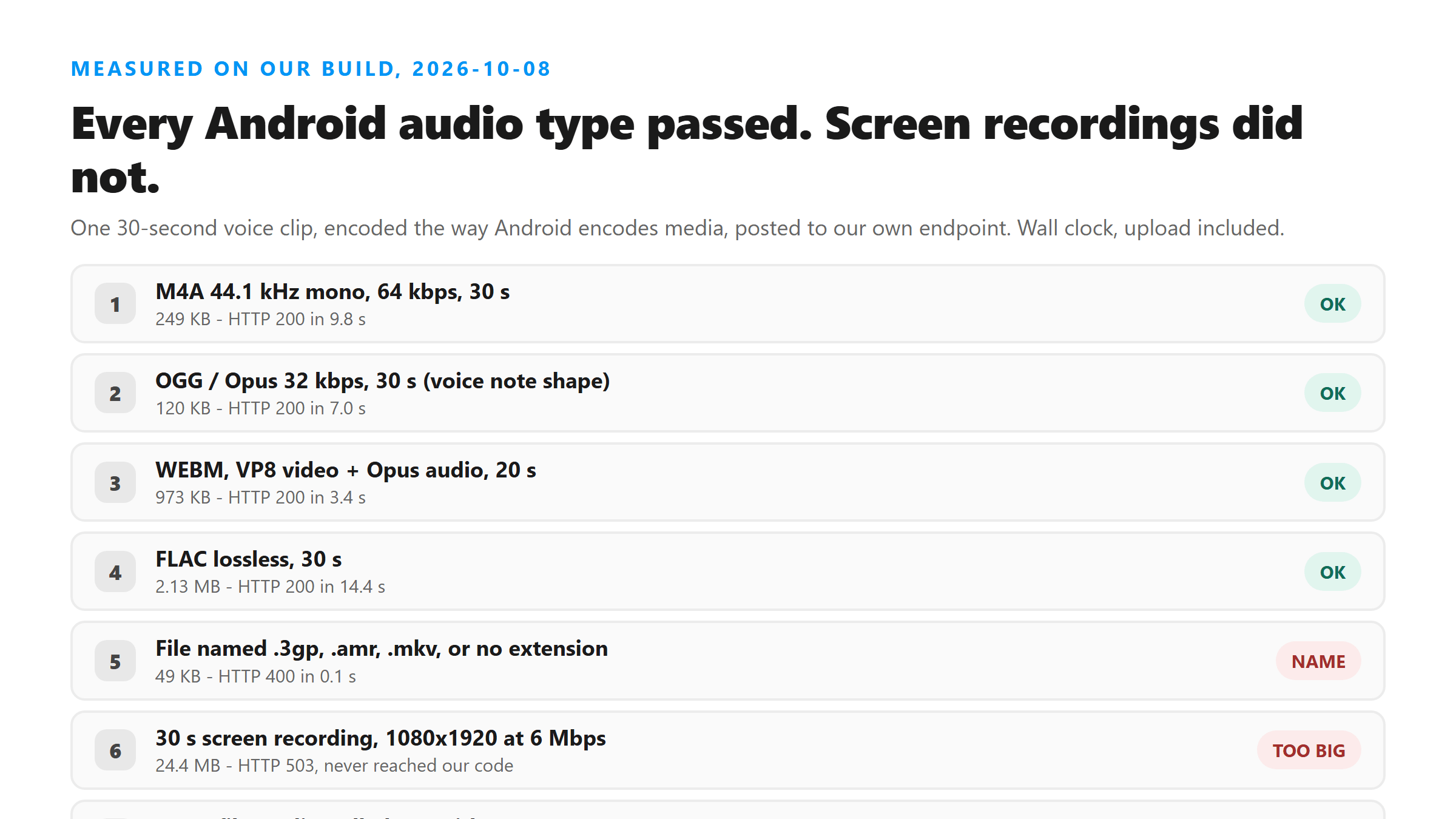
We took one 30-second voice clip and encoded it the ways Android encodes media, then posted each one to our own endpoint. Note that these are the same words looped, so treat the word counts as a shape rather than a natural-speech benchmark. Everything below returned HTTP 200 with the transcript intact.
- M4A, 44.1 kHz mono, 64 kbps - 30 s, 249 KB - 9.8 s end to end
- M4A, 44.1 kHz stereo, 128 kbps - 30 s, 474 KB - 11.6 s
- AAC, bare ADTS stream - 30 s, 368 KB - 11.6 s
- OGG with Opus at 32 kbps, the shape a forwarded voice note arrives in - 30 s, 120 KB - 7.0 s
- OGG with Vorbis - 30 s, 226 KB - 8.1 s
- WEBM with Opus - 30 s, 185 KB - 12.3 s
- WEBM with VP8 video and Opus audio - 20 s, 973 KB - 3.4 s
- MP3 at 128 kbps - 30 s, 481 KB - 12.4 s
- FLAC, lossless - 30 s, 2.13 MB - 14.4 s
- WAV, 44.1 kHz 16-bit mono - 30 s, 2.65 MB - 10.8 s
- MP4 - 249 KB - 13.1 s, including one named in uppercase, which made no difference
The four names that get refused on the spot
Four uploads never reached the transcription step at all. Each came back HTTP 400 in about a tenth of a second with "Unsupported file format. Please select MP3, WAV, M4A, AAC, OGG, FLAC, MP4, MOV, or WEBM.": a file named .3gp, a file named .amr, a file named .mkv, and a file with no extension at all. If an older voice recorder on your phone offers 3GP or AMR as its output format, switch it to M4A and the same recording goes through.
One detail worth knowing: the check reads the file name, not the file contents. We took the AMR file that had just been refused and renamed it to .m4a without re-encoding it. It was accepted, came back in 7.5 s, and produced the same transcript as the properly encoded version. We are telling you this because it explains the error message, not because renaming files is a good habit - a name that lies about the contents will confuse the next tool you hand it to.
The wall: screen recordings, and it is size, not format
This is where Android runs into trouble, and it is the same wall we measured on iPhone. A screen recording is a video file, and a video file is enormous compared with its own audio track. We encoded a 30-second 1080x1920 recording the way a phone screen recorder does - H.264 video at 6 Mbps plus AAC audio - and it came out at 24.4 MB. That upload never reached our code at all: the platform in front of it answered HTTP 503 with error code 1102 after 7.6 s. A 12-second cut of the same recording was 11.3 MB and got our own HTTP 500, "Transcription failed. Please try another supported file", also after 7.6 s.
- How little room there is. We have previously located the ceiling between 3.18 MB and 3.35 MB. At 6 Mbps, a screen recording uses up that budget in roughly four seconds. Anything longer than a few seconds of screen recording is over.
- The fix is one command. Pull the audio out of the same recording -
ffmpeg -i screen.mp4 -vn -c:a aac -b:a 64k out.m4a- and you get a 249 KB file that goes through in 11.3 s with every word intact. If you have no ffmpeg, any "extract audio" or "convert to MP3" app from the Play Store does the same thing. - The error message misleads. Our 500 says "please try another supported file", which points at the format. It is not the format: the same format at one fortieth the size works fine.
How long it takes on a phone connection
Wall clock, upload included, measured today on audio-only files from the same source clip: 30 seconds of audio came back in 7 to 14 s depending on the format, 60 seconds in 16.6 s, 90 seconds in 17.8 s, and 5 minutes in 40.8 s. Short files are dominated by fixed overhead rather than by length, which is why 30 s and 90 s are not three times apart. Long files are roughly linear from there. A five-minute file at 64 kbps mono is 2.49 MB, which still sits under the ceiling with room to spare.
What happens to the file you upload
Your browser posts the file to /api/transcribe over HTTPS. It is read into memory, transcribed once by the model, and the response comes straight back - the same request that finishes is the request that holds the text. Nothing is written to storage, there is no account, and there is nothing to log in to or delete afterwards. What you get back is the transcript as plain text, which you can copy or download as TXT, SRT or VTT. There are no timestamps and no speaker labels in the response, so if you need true captions you will have to align the text in a subtitle editor.
When it fails, read the error code first
- HTTP 400, "Unsupported file format" - the file name ends in something we do not accept, or has no extension. Rename or re-export as M4A.
- HTTP 500, "Transcription failed" - almost always size, not format. Extract the audio or shorten the file.
- HTTP 503 with error code 1102 - the upload was rejected before it reached our code because it is far too large. This is what a full-length screen recording looks like.
- HTTP 422 - the model found no speech in the file. Check that you captured audio and not a muted recording.
- A transcript that is only one or two words - we have seen silent and near-silent files come back as "you" or "nd" rather than empty, so a short result usually means the audio track is not what you think it is.
Got a Reel you want as text? Upload the file and download the transcript as TXT, SRT, or VTT →
Two of the failures on this page are format failures: .3gp, .amr and .mkv are refused by name, and a screen recording is usually far too big to upload. Wondershare UniConverter re-exports those files as MP4 or M4A on your own device, which fixes both at once.
FAQ
Can I just paste the Reel link into a transcript tool on Android?
No. Instagram does not allow outside tools to fetch Reel media, so there is nothing for a link field to retrieve. You have to get the file onto your phone first, by downloading your own Reel or screen-recording someone else's, then upload the file.
Which audio formats work if I am on Android?
In our test today: M4A, bare AAC, MP3, FLAC, WAV, OGG with either Opus or Vorbis, WEBM with Opus, and MP4. Refused by name: .3gp, .amr, .mkv, and any file with no extension.
Why does my screen recording fail but the same audio works?
Because of size. A 30-second 1080p screen recording is about 24 MB, which is roughly seven times the ceiling, and the platform rejects it before our code sees it. The audio track pulled out of that exact file is 249 KB and transcribes with every word intact.
Do I need to install an app to transcribe a Reel on Android?
No. Chrome on Android can pick the file straight out of your downloads or recordings folder and upload it. There is no account and nothing to install.
How long does a Reel take to transcribe on Android?
Measured today with the upload included: 30 seconds of audio came back in 7 to 14 s, 60 seconds in 16.6 s, 90 seconds in 17.8 s, and five minutes in 40.8 s. Short files are dominated by fixed overhead, so do not expect the time to scale evenly at the short end.